Departamentos
All employees in the Employees app fall under specific departments within a company.
Criar novos departamentos
To make a new department, navigate to , then click the New button in the top-left corner to reveal a blank department form. Fill out the following information on the department form:
Department Name: Enter a name for the department.
Manager: Select the department manager using the drop-down menu.
Parent Department: If the new department is housed within another department (has a parent department), select the parent department using the drop-down menu.
Company: Select the company the department is part of using the drop-down menu. This field only appears in a multi-company database.
Color: Select a color for the department. Click the colored box to display all the color options. Click on a color to select it.
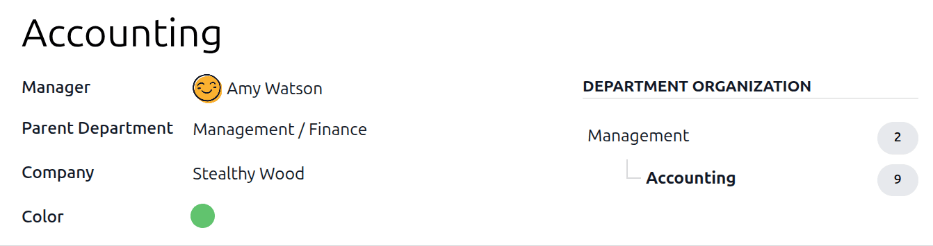
After the form is completed, click the (Save manually) icon to manually save the changes. When saved, a DEPARTMENT ORGANIZATION chart appears in the right of the department card, illustrating where the department lies in the organization, and how many employees are within each listed department.
Nota
O formulário é salvo automaticamente enquanto os dados são inseridos, mas o gráfico Organização do departamento não aparece até que o formulário seja salvo manualmente. Se o formulário não for salvo, o gráfico Organização do departamento ficará visível ao abrir o cartão do departamento no painel Departamentos.
Painel de controle dos departamentos
To view the currently configured departments, navigate to . All departments appear in a Kanban view, and are listed in alphabetical order.
The default view for the Departments dashboard is a Kanban view. It is possible to view the departments in two other forms: a list view and a hierarchy view.
Visualização Kanban
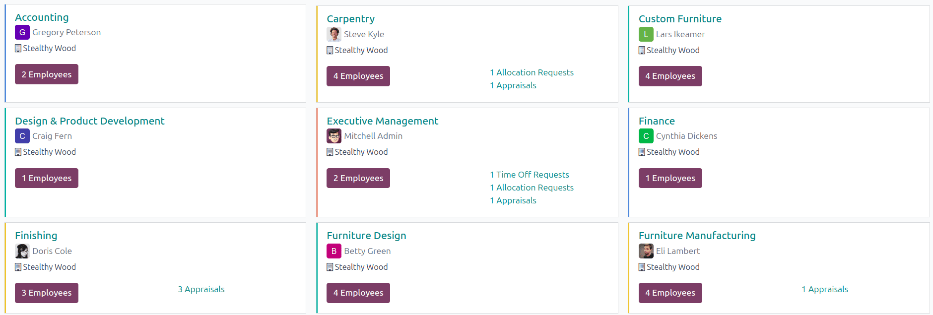
Each department has its own Kanban card on the main Departments dashboard. Each department card displays the following information, if available:
Name: The name of the department.
Manager: The name and image of the department manager.
Company: The company the department is part of, including the location icon.
Employees: The number of employees within the department.
Appraisals: The number of appraisals scheduled for employees in the department.
Time Off Requests: The number of unapproved time off requests for employees in the department awaiting approval . This only appears if there are requests to approve.
Allocation Requests: The number of unapproved allocation requests for employees in the department awaiting approval. This only appears if there are requests to approve.
New Applicants: The number of new applicants for a position within the department. This only appears if there are new applicants.
Expenses: The number of employees in the department with open expenses to approve. This only appears if there are any expenses waiting for approval.
Absence: The number of employees with approved time off for the current day.
Barra de cores: a cor selecionada para o departamento aparece como uma barra vertical no lado esquerdo do cartão do departamento.
Nota
Click on an alert in a department card, such as Time Off Requests, to reveal a list view of the requests to approve for that department.
Visualização de lista
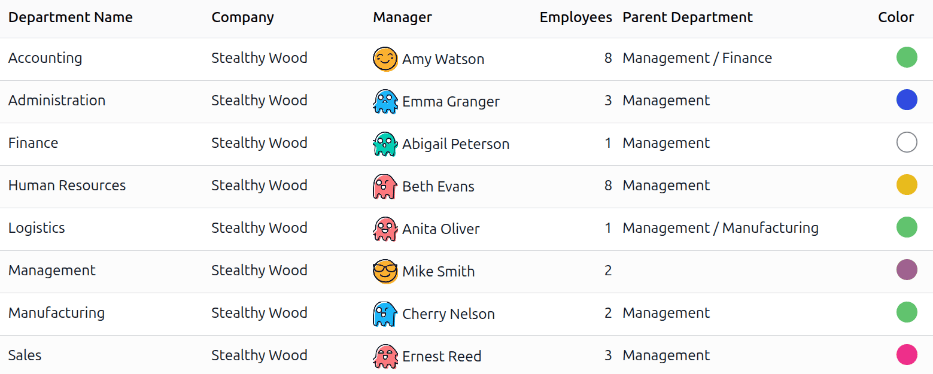
Para exibir os departamentos em uma visualização de lista, clique no ícone (lista) no canto superior direito. Os departamentos aparecem em uma visualização de lista, que exibe o Nome do departamento, Empresa, Gerente, Funcionários, Departamento superior e Cor de cada departamento.
Os departamentos são classificados em ordem alfabética por Nome do departamento, por padrão.
Visualização de hierarquia
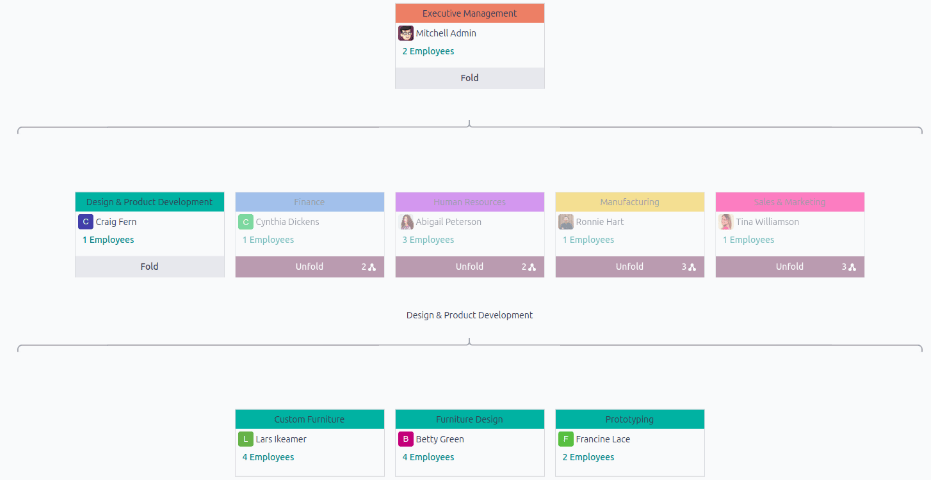
To view the departments in a hierarchy view, click the
(Hierarchy) icon in the top-right corner. The departments appear in an organizational
chart format, with the highest-level department at the top (typically Executive Management), and
all other departments beneath it. All child departments of the first-level child departments are
folded.
Each department card displays the Department Name, the Manager (and their profile image), the Number of Employees in the department, and the number of any child departments.
Clique no botão Desdobrar em um cartão de departamento para expandi-lo. Uma vez expandido, o botão Desdobrar muda para um botão Dobrar. Para recolher o departamento, clique no botão Dobrar. Somente um departamento por linha pode ser desdobrado de cada vez.
Click anywhere on a department card to open the department form. Click the (#) Employees smart button to view a list of all the employees in that department.