
Recursos da loja
Quotations and sales orders
When working in retail, you might need to access quotations or sales orders created on the Sales app from the POS register to finalize a sale.
Select a sales order or quotation
From the POS register, click the (vertical ellipsis) icon and Quotation/Order to open the list of quotations and sales orders created from the sales application. When imported, the sales order reference number is displayed under the ordered products, next to the (shopping basket) icon.
Aplicar um pagamento de entrada no pedido
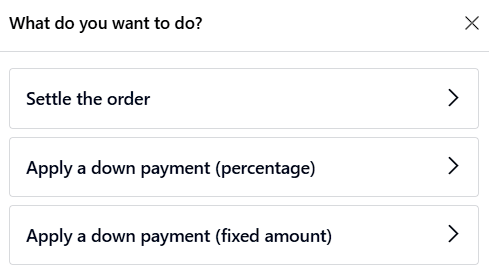
Select a quotation or sales order, and on the pop-up that opens, choose the desired settlement method. The customer can either:
Settle the order completely: Click Settle the order to pay for the total of the quotation or sales order.
Settle the order partially:
Select Apply a down payment (percentage) or Apply a down payment (fixed amount) to make a down payment for the selected quotation or sales order.
Enter the percentage or fixed amount the customer is paying, and click Apply to add the down payment to the cart.
Nota
Once a sales order is partially settled, the applied down payment is automatically deducted from the order’s total.
Ver também
Enviar mais tarde
The Ship Later feature allows you to sell products and schedule delivery at a later date. It is useful, for example, when a product is out of stock or so voluminous that it requires to be shipped, or when, for any reason, the customer needs their order shipped later, etc.
Configuração
Go to the POS settings, scroll down to the Inventory section, and enable Allow Ship Later.
Uma vez ativado, você pode:
Escolha o local de onde os produtos são enviados, selecionando um Armazém.
Defina uma Rota específica ou deixe esse campo em branco para usar a rota padrão.
Define the Shipping Policy; select As soon as possible if the products can be delivered separately, or When all products are ready to ship all the products at once.
Ver também
Aplicação prática
Access the POS register and make a sale.
Na tela de pagamento, defina um cliente e selecione Enviar mais tarde.
In the pop-up window, set a shipping date and click Confirm to proceed to payment.
O sistema cria instantaneamente uma ordem de entrega do armazém para o endereço de entrega.
Nota
O cliente selecionado deve ter feito referência a um endereço no sistema para que os produtos sejam enviados.
Códigos de barras
Using a barcode scanner improves efficiency and provides quicker customer service. In Point of Sale, scanners are used to add products to a cart, apply discounts, or log employees into the POS register.
Once enabled in the Inventory app, you can use the barcode feature with any product that has a barcode assigned.
Atribuir códigos de barras
To use this feature, assign a barcode to your products following the default barcode nomenclature. You can also assign barcodes automatically using the barcode lookup feature and database.
Nota
Employees can log into the POS by scanning a badge. To configure this feature, open the Employees app, select an employee, then, in the HR Settings tab, fill in the PIN Code or Badge ID.
Barcode nomenclature
Barcode nomenclatures explain how barcodes are identified and classified. When a barcode is scanned, it is linked to the first rule that matches its pattern. This pattern syntax adheres to a standardized method of prefix matching; a barcode is considered a match if its prefix aligns with the pattern.
Patterns also define how numerical values —such as weight, price, or percentage— are encoded into
the barcode. These are indicated by {NNN}, where the N’s define the position of the digits.
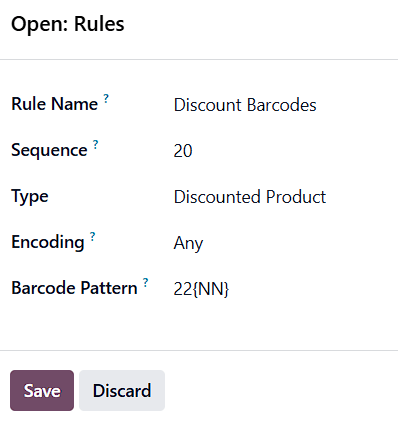
To view or edit these rules, go to the POS settings, scroll to the Inventory section, and click the (Internal Link) icon next to Barcode Nomenclature.
For discount tags, use the Discount Barcodes rule. The default pattern is
22{NN}, meaning the barcode must start with 22, followed by two digits representing
the discount percentage.
Dica
To allow for three-digit discounts (such as 100%), add an extra N to the Barcode
Pattern field (e.g., 22{NNN}).
Ver também
Use
To use discount tags, scan the product barcode or manually add it to the cart. Then, scan the discount tag. The discount is automatically applied to the last product added to the cart.