
고객 계정
The Customer account feature allows customers to use their account to make purchases. They can deposit money for future purchases or select their account as a payment method to purchase items on credit and settle the debt later through a point-of-sale transaction or via an issued invoice.
환경설정
To allow customers to pay using their customer account, create a payment method and configure it as follows:
Enable Identify Customer to force the selection of a customer to allow using this payment method.
고객 미수금 계정을 사용하려면 전표 필드를 비워 둡니다.
Select the points of sale where this payment method is available in the Point of Sale field.
참고
Set a maximum sales credit to prevent customers from exceeding a defined credit limit. Once the maximum credit amount is reached, the selected customer button turns orange and a (warning sign) icon appears next to the customer’s name as a warning. However, this warning does not prevent a sale from proceeding.
결제 프로세스
입금
POS 인터페이스에서 고객 계좌로 입금하려면:
고객 을 클릭한 후 목록에서 원하는 고객을 찾습니다.
(햄버거 메뉴) 아이콘을 클릭한 다음 자금 입금 을 선택합니다.
결제 수단을 선택합니다.
When redirected to the payment screen, enter the amount to deposit using the keypad.
거래를 승인 합니다.
팝업 창이 나타나면 예 를 클릭하여 확정합니다.
고객 계정을 결제 수단으로 사용하기
To use the customer account as a payment method for a purchase from the POS payment screen:
고객 계정에 생성되어 있는 결제 수단 을 선택합니다.
Click Customer to open the customer list and select the customer.
청구서 버튼을 클릭합니다.
구매를 승인 합니다.
중요
To effectively monitor and manage the customer’s unpaid debt, either create an invoice for the order or install the Accounting application.
부채 추적
When a customer pays using their customer account, the purchase amount is recorded as debt until it is paid off. To keep track of a customer’s debt, consult their customer statement in the backend or their customer profile from the POS register.
To access the Customer Statement report, go to , select a customer to open their form, and click the Customer Statements smart button.
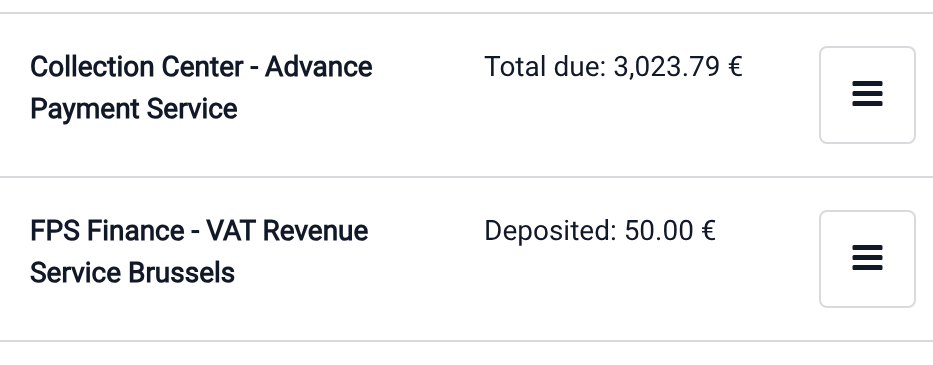
To view the total amount due or deposited by a customer from the POS register, access the customer list by clicking Customer and search for the desired customer; the amount due or deposited is displayed next to their name.
더 보기:
참고
When a customer is related to a company, the customer statement report might be related to the company itself, and not the customer.
미납금 정산
To settle a customer’s due amount, register the payment from the invoice or, from the POS interface, follow these steps:
:guilabel:`고객`을 클릭한 후 목록에서 원하는 고객을 검색합니다.
고객 이름 옆에 있는 (햄버거 메뉴) 아이콘을 클릭합니다.
주문 정산 또는 청구서 정산 을 선택합니다.
결제할 주문서나 청구서를 선택합니다.
결제 를 클릭한 후 관련된 결제 수단을 선택합니다.
승인 을 클릭합니다.
Click Yes on the popup window to confirm the deposit of the payment received from the customer.