
销售活动门票
Odoo Events provides users with the ability to create custom event tickets and ticket tiers with various price points.
It also allows them to sell event tickets in different ways: via standard sales orders, through point of sales, and online through an integrated website.
配置
要在 Odoo 中销售活动门票,首先必须启用某些设置。
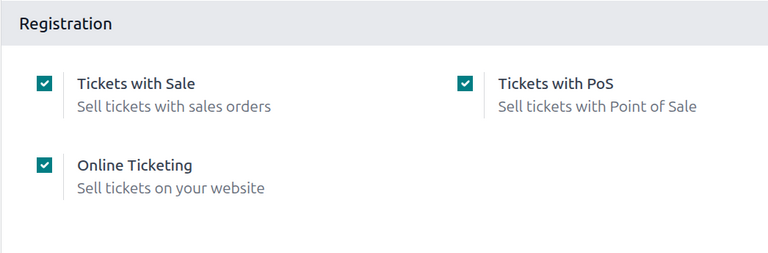
First, navigate to . In the Registration section, there are several different settings:
Tickets with Sale: Allows users to sell event tickets with standard sales orders in the Sales app.
Tickets with PoS: Allows users to sell even tickets with point of sales in the Point of Sale app.
Online Ticketing: Allows users to sell event tickets online through their integrated Odoo website.
To activate a setting, tick the checkbox beside the desired feature’s label, and click Save at the upper-left to enable it.
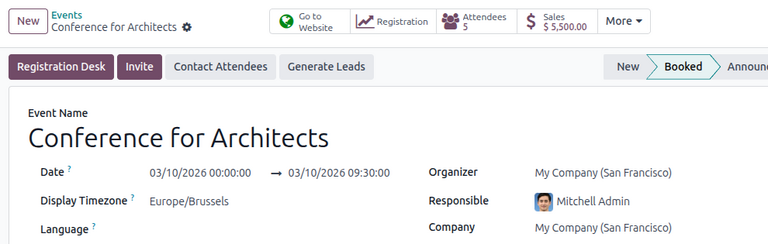
With these settings enabled, any event with paid tickets sold (either through a sales order or through the website) features a Sales smart button at the top of the event form. Clicking the Sales smart button reveals a separate page, showcasing all the sales orders (standard and/or online) related to tickets that have been sold for that specific event.
使用销售应用程序销售活动门票
要使用销售订单销售活动门票,首先要导航到 应用程序。然后,点击 新建 打开一个新的报价单。
After filling out the top portion of the form with the appropriate customer information, click Add a product in the Order Lines tab. Then, in the Product column, select (or create) an event registration product.
To add an event registration product to a sales order, its Product Type field must be set to Service and the Create on Order field must be set to Event Registration. These fields are accessible in the product form of the event registration product.
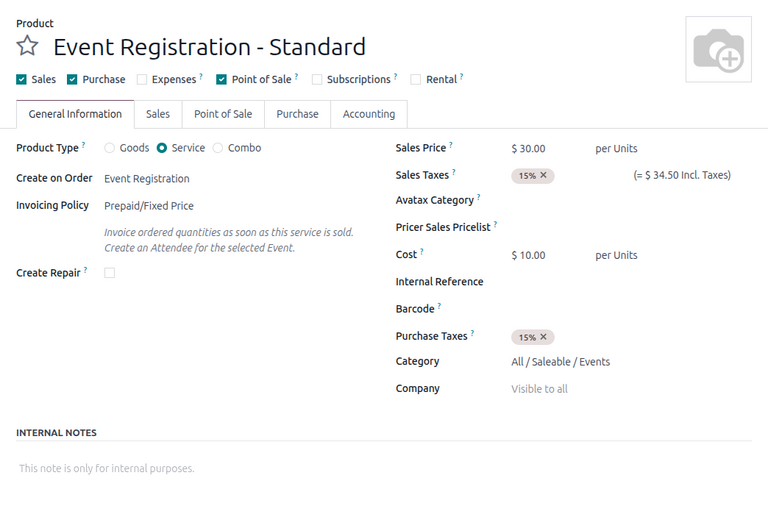
Once an event registration product is selected, a Select an Event pop-up window appears.
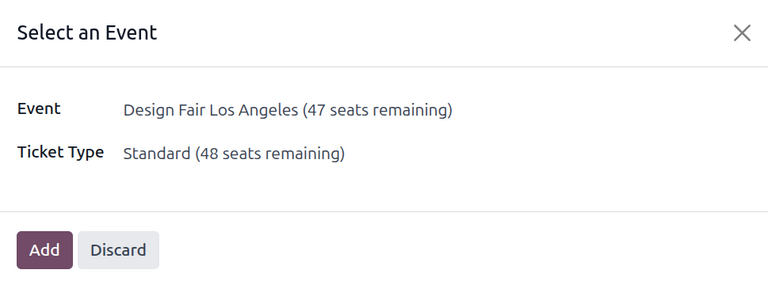
From the Select an Event pop-up window, select which event this ticket purchase is related to in the Event field drop-down menu. Then, in the Ticket Type drop-down menu, select which ticket tier the customer wishes to purchase, if there are multiple tiers configured for that event.
When all the desired configurations are complete, click Add. Doing so returns the user to the sales order, with the event registration ticket product now present in the Order Lines tab. The user can proceed to confirm and close the sale, per the usual process.
小訣竅
To re-open the Select an Event pop-up window, click on the event registration product name in the Order Lines tab, then click on the (pencil) icon.
Sell event tickets through the Point of Sale app
To sell event tickets through a point of sale, the event registration products must be configured to appear in the Point of Sale app.
First, navigate to the product form for the event registration product by going to and selecting the desired product. Under the name of the product, select the Point of Sale checkbox to enable the product to be visible in a POS.
After selecting, a Point of Sale tab appears where the user can optionally provide additional information about the event tickets in a POS, such as its category or whether it can be self-ordered.
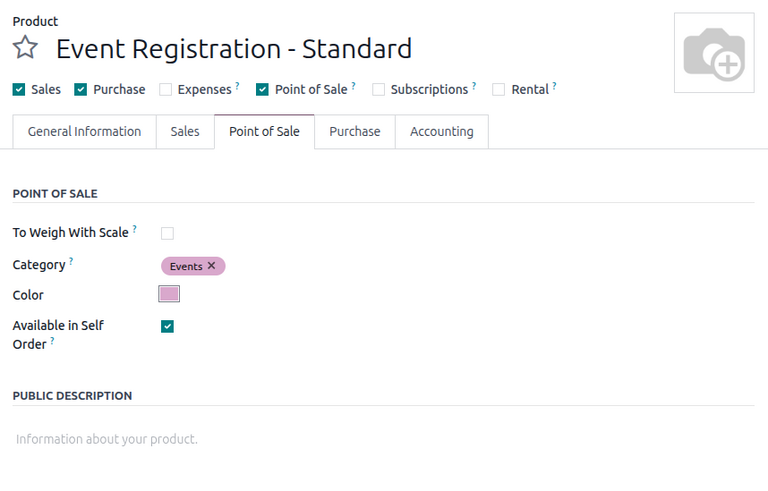
With the products configured, navigate to app and open a POS register. The POS displays any open events with the corresponding event registration products, as well as the event registration products themselves.
To learn more about configuring and selling products in a POS, refer to the Point of Sale documentation.
通过网站应用程序销售活动门票
When a visitor arrives on the registration page of the event website, they can click the Register button to purchase a ticket to the event.
備註
If the visitor is not already on the registration page of the event website, clicking Register on the event website’s submenu redirects them to the proper registration page. From there, they can click the Register button to begin the ticket purchasing process.
如果为活动配置了不同的票价,访客将看到一个 门票 弹出窗口。
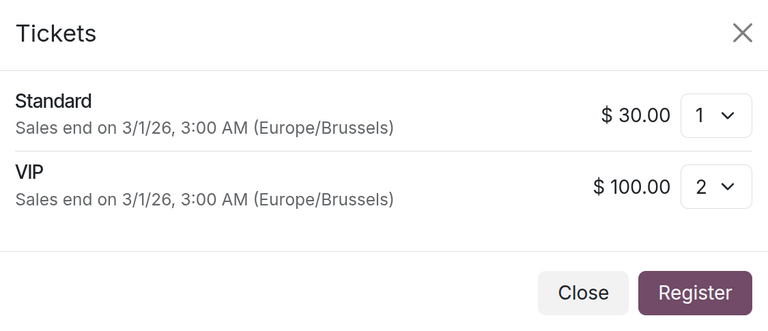
From here, visitors select which ticket tier they would like to purchase, along with a quantity, using the drop-down menu available to the right of their desired ticket. Once the desired selections have been entered, the visitor then clicks the Register button.
Then, an Attendees pop-up window appears, containing all the questions that have been configured in the Questions tab of the event form for this particular event.
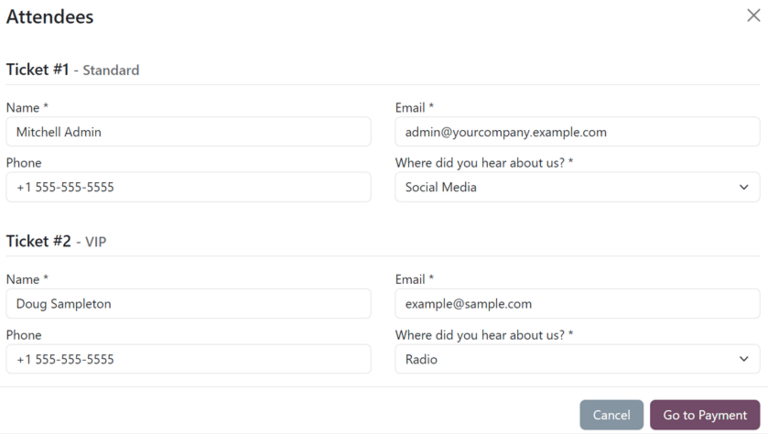
If multiple tickets are being purchased at once, there are numbered sections for each individual ticket registrant, each containing the same questions. However, if any question has been configured with the Ask once per order setting, that question is only asked once, not for every attendee making the reservation in the order.
输入所有必要信息后,访问者可以点击 前往付款 按钮。首先,访问者会进入 账单 确认页面,然后进入 付款 确认页面,访问者可以使用数据库中设置的任何付款方式完成订单。
然后,一旦在网站前端完成购买,随后的销售订单就可以立即在后台数据库中访问。
其他資料