
Local Network Access
Local Network Access is a security feature that limits a website's ability to send requests to servers on a local network. Access requires explicit user permission, which makes it possible to grant network access to a specific web page. Using LNA, Odoo Point of Sale can communicate with devices with local access, such as supported ePOS printers, directly from the browser and without requiring an SSL certificate.
Ghi chú
Local Network Access is available in most browsers based on Chromium version 142 or higher, including Google Chrome, Brave, Microsoft Edge, Vivaldi, and Opera.
Quan trọng
The ePOS printer must have a static IP address; otherwise, it may become unreachable. The static IP should be configured through the router.
Activation
To activate LNA and ensure POS uses it over a secure connection, create a new system parameter as follows:
Go to .
Click New and fill in the fields:
Key:
point_of_sale.use_lnaValue:
True
Nhấp Lưu.
Browser permission
Once LNA is activated in Odoo and a device with local access (such as an ePOS printer) is configured in Google Chrome, the browser displays a popup requesting permission to access devices on the local network.
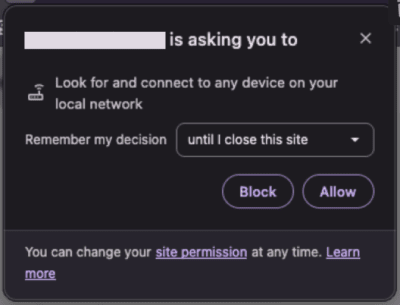
If the popup does not appear in Google Chrome, follow the next steps to manually grant local network access:
Access Google Chrome's settings.
Click Privacy and security, then Site settings.
Click Additional permissions, then Local network.
Grant local network access:
If the database URL appears under Not allowed to access other devices on your local network, click the (ellipsis) icon, then Allow.
If the database URL is not listed on the page, click Add next to Allowed to access other devices on your local network, enter the database URL, then click Add.
Refresh the database page.
Ghi chú
To manually grant local network access in browsers other than Google Chrome, refer to their respective documentation.
Some browsers may require enabling a flag to activate the feature:
Brave:
brave://flags/#local-network-access-checkGoogle Chrome:
chrome://flags/#local-network-access-check
Point of sale LNA status
To view the point of sale's LNA status, open or access the register, click the (hamburger menu) icon in the top-right corner, then click the Local Network Access button at the bottom of the menu. The current LNA status details are then displayed in the LNA Permission status popup.