
ใบเสร็จ
POS receipts display the following elements:
|
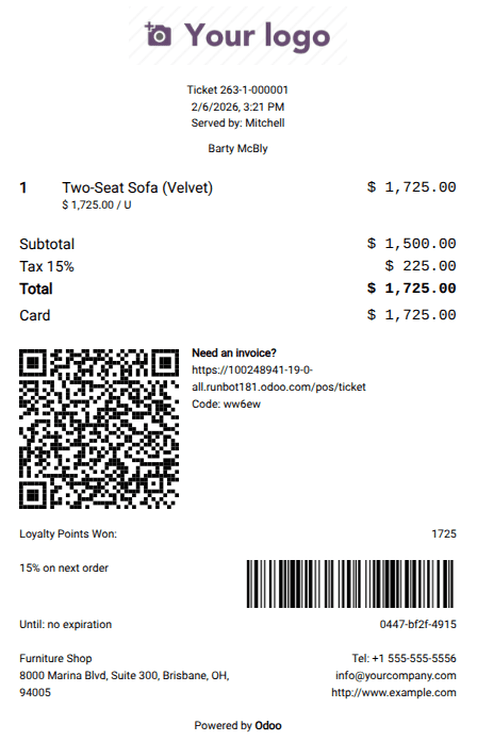
|
การกำหนดค่า
To set up POS receipts, go to , and scroll down to the Bills & Receipts section.
To customize the header and footer, enable the Custom Header & Footer setting and enter the information to be printed on the receipts in both fields.
To print receipts automatically upon payment confirmation, enable the Automatic Receipt Printing setting.
To print receipts that don't display product prices, enable the Basic Receipt setting.
To allow for sending receipts via email, SMS, or WhatsApp from the Receipt screen, enable the SMS Enabled and/or WhatsApp Enabled setting(s).
Note
The WhatsApp Enabled setting is only available if the WhatsApp Messaging module is installed.
See also
Receipt reprint
To reprint a receipt, follow the next steps:
Access the POS register.
Click Orders on the POS interface.
Open the dropdown selection menu next to the search bar, and set the filter to Paid.
Select the desired order and click Print Receipt.
Tip
Filter the list of orders using the search bar: type in your reference and select Receipt Number, Date, or Customer.