
จอแสดงของลูกค้า
The customer display feature provides real-time updates on a secondary screen for customers during the checkout process. It shows the following information:
Unit prices
Line (product) totals and overall total
Added notes
Selected payment method
Change due, if applicable
Example
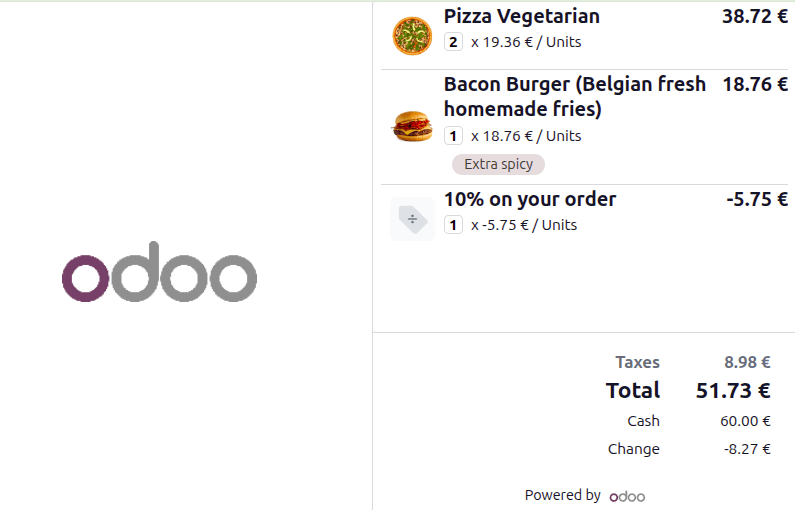
On the customer display, the customer can review their order and all amounts, including discounts and taxes:
2 pizzas at
19.36€eachAn
Extra spicyburger at18.76€A 10% discount applied to the order
8.98€in taxes
Finally, the customer pays 60.00€ in cash and receives 8.27€ in change.
การกำหนดค่า
The customer display can be shown on either a secondary screen connected via USB-C or HDMI, or on a screen connected through an IoT box. It is also possible to set it up wirelessly by scanning a QR code.
The background image can be customized in the POS settings. To do so, scroll down to the Connected Devices section and, under Customer Display, click Upload your file. Then, select the relevant image and click Save.
Tip
To change the image, click the Edit button.
Note
Both the customer and POS displays must have a minimum diagonal size of 6 inches. For optimal readability, larger screens are recommended.
Using an IoT box
To connect a customer display via an IoT box:
either connect the screen to the IoT box during its setup;
or navigate to the POS settings, scroll down to the Connected Devices section, make sure the IoT Box setting is enabled, and select the relevant device in the Customer Display field.
Tip
Connecting a customer display via an IoT box is especially useful for tablet POS devices.
Opening the customer display
To open the customer display, follow these steps:
Click the (hamburger menu) icon in the upper-right corner.
Click the (Customer Display) icon.
On the Open Customer Display pop-up, choose the device to use for the customer display:
This device: Use this option if a secondary screen is connected via USB-C or HDMI, then drag the customer display window to that screen.
Display QR: Scan the QR code to open the customer display on any internet-connected device.
Note
For IoT-connected screens, the customer display opens automatically on the connected device. Make sure both devices are connected to the same network.
Tip
For POS terminals running the Odoo Android app with dual screens, activate the Point of Sale Mobile module. To use the customer display, open it, and Select a display.