自助考勤终端
Odoo 的 考勤 应用程序允许员工直接从数据库或自助考勤终端办理上班和下班手续。
自助服务终端供员工在签到和签退时使用 :doc:`专用设备<hardware>`(个人电脑、平板电脑或移动电话)。
需要为**无法**访问数据库的员工配备自助考勤终端。
只有能够访问数据库的 Odoo 员工才能在 考勤 应用程序中办理签到和签退,这些员工为 用户。
配置
To use kiosks in the Attendances application, navigate to , and configure the Modes section and the 自助考勤设置部分.
Once all desired settings have been configured, click the Save button on the Settings page to activate and enable them.
终端机模式设置
Determine how an employee checks in at a kiosk, either by searching for their name (Manual Selection), scanning an employee ID or key fob (Barcode/RFID), or both.
在设置页面,使用 模式 部分中 自助考勤终端模式 字段的下拉菜单,选择所需的选项。选项包括 条形码/RFID、条形码/RFID 和手动选择`或 :guilabel:`手动选择。
注解
条形码 应用的使用 并不 强制要求安装条形码/RFID相关模块。
自助考勤设置部分
自助考勤终端 部分中的各种设置决定了员工如何使用自助考勤终端签到和签退。
Barcode Source : This setting appears only if one of the two Barcode/RFID selections were configured for the Kiosk Mode setting.
If available, select how barcodes are scanned at the kiosk from the drop-down menu. Barcodes can be scanned with a dedicated Scanner, or with a device’s Front Camera or Back Camera.
Display Time : Determine how many seconds a check-in/check-out confirmation message remains on the kiosk screen before returning to the main check-in screen.
Employee PIN Identification: Click this checkbox to require employees to use a unique PIN to check in. PINs are configured on each individual employee record. Refer to the new employee documentation for more information on setting up PINs.
考勤终端网址:Odoo会生成一个唯一的网络地址(URL),无需登录Odoo数据库即可将设备用作终端。设置终端设备时,在网络浏览器中导航到该唯一网址,以显示 考勤 应用程序终端。
重要
These kiosk URLs are not secured with any type of access code. Anyone who has the URL can access the Attendances app kiosk. If the URL is compromised for any reason, such as in the event of a security breach, click Generate new URL, located beneath the link, to generate a new URL and update the kiosk accordingly.
自助考勤模式
**只有**拥有特定 访问权限 的用户才能进入*自助考勤模式*。
自助考勤模式 可以通过两种不同方式激活:
导航至 ,然后点击顶部菜单中的 自助考勤模式。然后,设备将退出 Odoo 并进入 自助考勤终端模式。
导航至 。在 自助考勤设置 部分,使用 自助考勤 Url 字段中的链接在任何设备上打开 自助考勤模式。
重要
作为一项安全措施,一旦设备进入*自助考勤模式*,如果没有重新登录,就无法再进入数据库。
注解
如有需要,可随时生成新的自助考勤 URL。点击 生成新的自助考勤模式 URL 。
The kiosk loads, displaying the current date and time, along with the following banner at the top: Connect an RFID reader, and scan a token. ‘Read the Documentation’/ ‘Buy an RFID Device.
Click the text link Read the Documentation to open the corresponding documentation in a new tab. Click the text link Buy an RFID Device to open a new tab with available products to purchase on Amazon. Close either tab to return to the kiosk.
At the end of the text, an X appears. Click the X to close the banner. Closing the banner hides it from that point on, and cannot be enabled again.
要退出 自助考勤模式,需关闭网页浏览器中的选项卡或返回 Odoo 主登录界面。
使用自助服务终端签到和签出
徽标
要使用工牌办理登机或退房手续,请点击自助服务机中央的 扫描您的工牌 图像。
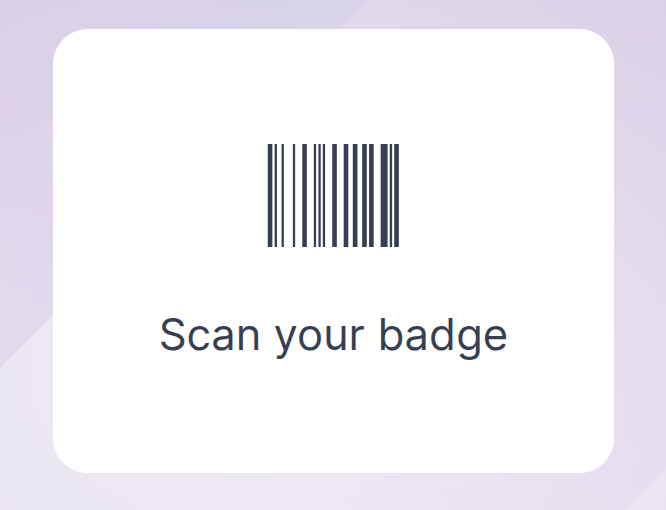
然后,使用配置菜单的 自助考勤设置 部分中配置的方法扫描胸牌上的条形码。
扫描条形码后,员工即可办理签到或签出手续,同时会出现一条包含所有信息的 确认消息 消息。
RFID
要使用 RFID 钥匙扣办理签到或签出手续,需用 RFID 阅读器扫描钥匙扣即可。
扫描完成后,员工将被签到或签出,并出现一条包含所有信息的 确认信息 。
手动
Users who do not have a scannable badge or an RFID fob can manually check in and out at a kiosk.
Tap the Identify Manually button on the kiosk, and a screen appears with all the employees who can be checked in or out. Tap on a person to check them in or out, and a confirmation message appears.
查找指定人员的方式:
Search: Tap into the search bar and enter the desired person’s name. As the name is typed, matching results are displayed on the screen.
By department: Tap on any desired selection in the department section, located on the left side of the screen, to only view employees from that specific department. The number at the end of each listed department represents how many employees that department has.
PIN
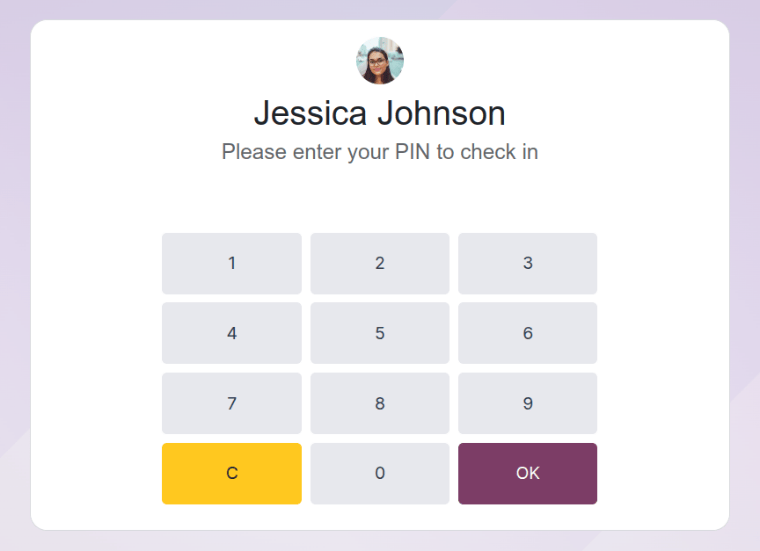
如果在配置菜单的 自助终端设置 部分中勾选了 员工 PIN 码识别 复选框,则员工在手动签到或签出时会被提示输入 PIN。
选择员工后,数字键盘上会出现一条信息。签到时,数字上方会显示 (员工)请输入您的 PIN 码签到。结账时,数字上方会显示 (员工)请输入您的密码结账。
使用数字键盘输入 PIN 码,完成后点击 确认。然后,该员工将被签到或签退,并出现 确认信息。
确认信息
When an employee checks in or out, a confirmation message appears, with all the check-in or check-out information.
签到时,会出现 欢迎(员工) 消息以及当前日期和时间。如果员工当天已经签到和签退,则会出现 今天之前的小时数: HH:MM 信息也会出现,显示之前记录的总小时数。
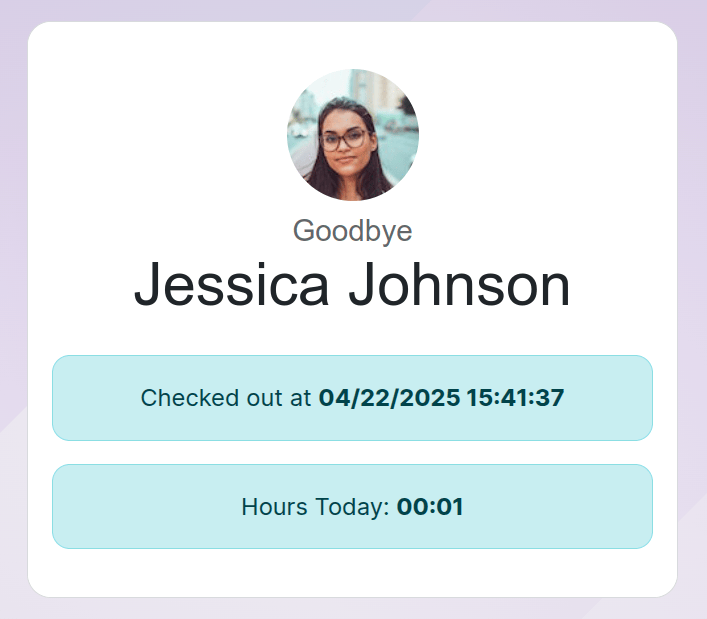
When checking out, Goodbye (Employee) appears, as well as the date and time of checkout. Beneath the message is an Hours Today: HH:MM field, with the total hours and minutes logged for the day.
“欢迎” 和 “再见” 信息下方都有一个 确认 按钮。要在自助服务终端预设时间之前退出屏幕,请点击 确认 按钮。