
Vender entradas para los eventos
Odoo Events provides users with the ability to create custom event tickets and ticket tiers with various price points.
It also allows them to sell event tickets in different ways: via standard sales orders, through point of sales, and online through an integrated website.
Configuración
Primero debe habilitar algunos ajustes para poder vender entradas para eventos en Odoo.
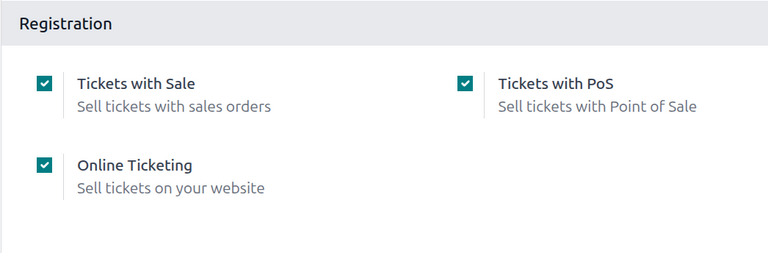
First, navigate to . In the Registration section, there are several different settings:
Tickets with Sale: Allows users to sell event tickets with standard sales orders in the Sales app.
Tickets with PoS: Allows users to sell even tickets with point of sales in the Point of Sale app.
Online Ticketing: Allows users to sell event tickets online through their integrated Odoo website.
To activate a setting, tick the checkbox beside the desired feature’s label, and click Save at the upper-left to enable it.
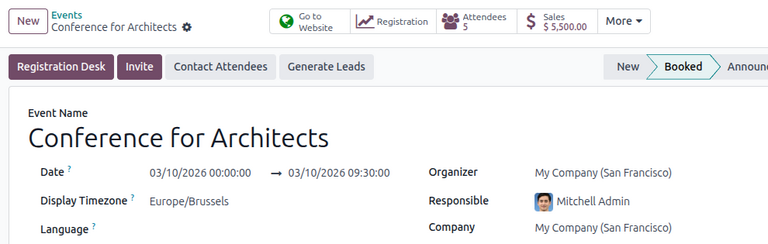
With these settings enabled, any event with paid tickets sold (either through a sales order or through the website) features a Sales smart button at the top of the event form. Clicking the Sales smart button reveals a separate page, showcasing all the sales orders (standard and/or online) related to tickets that have been sold for that specific event.
Vender entradas para sus eventos con la aplicación Ventas
Primero vaya a la aplicación para vender entradas para sus eventos a través de órdenes de venta, después haga clic en Nuevo para abrir un nuevo formulario de cotización.
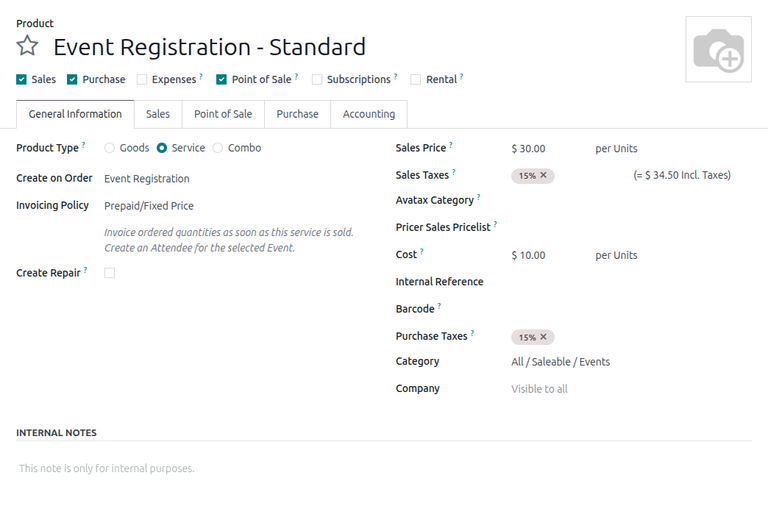
After filling out the top portion of the form with the appropriate customer information, click Add a product in the Order Lines tab. Then, in the Product column, select (or create) an event registration product.
To add an event registration product to a sales order, its Product Type field must be set to Service and the Create on Order field must be set to Event Registration. These fields are accessible in the product form of the event registration product.
Once an event registration product is selected, a Select an Event pop-up window appears.
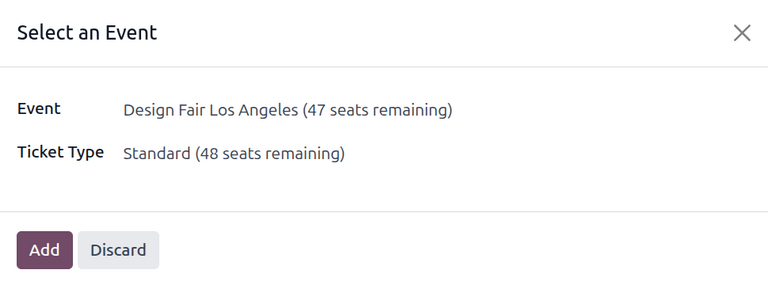
From the Select an Event pop-up window, select which event this ticket purchase is related to in the Event field drop-down menu. Then, in the Ticket Type drop-down menu, select which ticket tier the customer wishes to purchase, if there are multiple tiers configured for that event.
When all the desired configurations are complete, click Add. Doing so returns the user to the sales order, with the event registration ticket product now present in the Order Lines tab. The user can proceed to confirm and close the sale, per the usual process.
Truco
To re-open the Select an Event pop-up window, click on the event registration product name in the Order Lines tab, then click on the (pencil) icon.
Sell event tickets through the Point of Sale app
To sell event tickets through a point of sale, the event registration products must be configured to appear in the Point of Sale app.
First, navigate to the product form for the event registration product by going to and selecting the desired product. Under the name of the product, select the Point of Sale checkbox to enable the product to be visible in a POS.
After selecting, a Point of Sale tab appears where the user can optionally provide additional information about the event tickets in a POS, such as its category or whether it can be self-ordered.
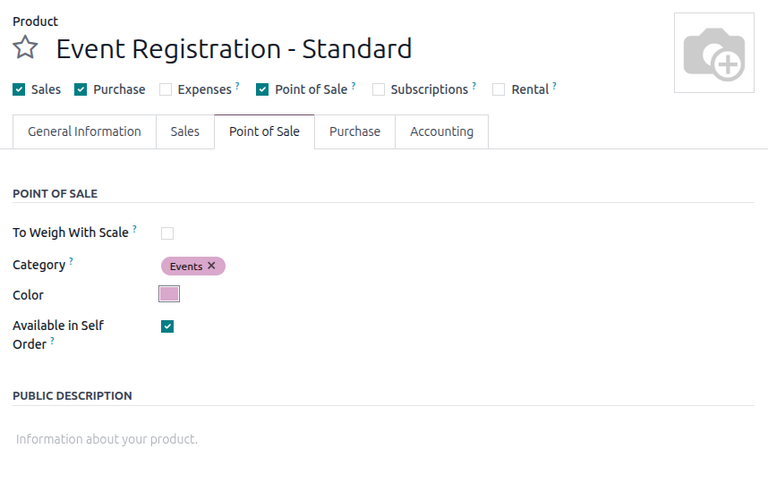
With the products configured, navigate to app and open a POS register. The POS displays any open events with the corresponding event registration products, as well as the event registration products themselves.
To learn more about configuring and selling products in a POS, refer to the Point of Sale documentation.
Vender entradas para eventos con la aplicación Sitio web
When a visitor arrives on the registration page of the event website, they can click the Register button to purchase a ticket to the event.
Nota
If the visitor is not already on the registration page of the event website, clicking Register on the event website’s submenu redirects them to the proper registration page. From there, they can click the Register button to begin the ticket purchasing process.
El visitante verá la ventana emergente Entradas en caso de que haya varios niveles configurados para el evento.
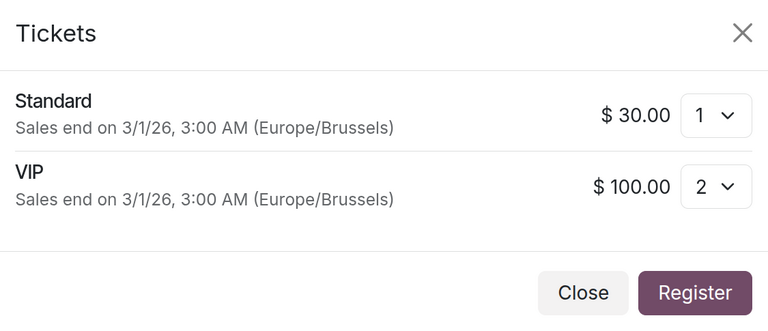
From here, visitors select which ticket tier they would like to purchase, along with a quantity, using the drop-down menu available to the right of their desired ticket. Once the desired selections have been entered, the visitor then clicks the Register button.
Then, an Attendees pop-up window appears, containing all the questions that have been configured in the Questions tab of the event form for this particular event.
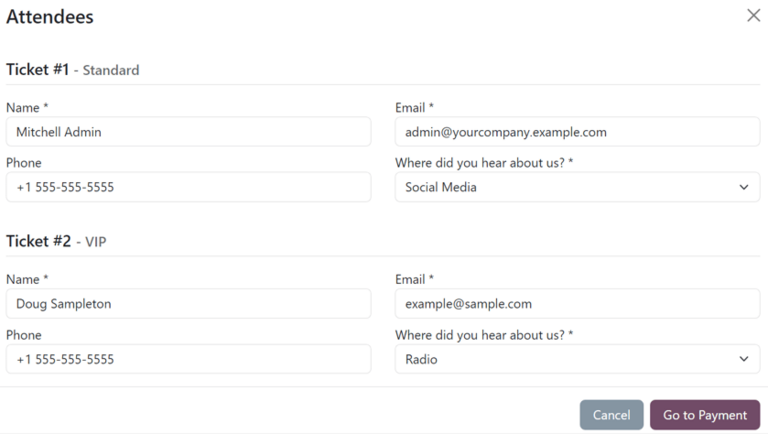
If multiple tickets are being purchased at once, there are numbered sections for each individual ticket registrant, each containing the same questions. However, if any question has been configured with the Ask once per order setting, that question is only asked once, not for every attendee making the reservation in the order.
Después de completar toda la información necesaria, el visitante puede hacer clic en el botón Ir al pago. Esta acción le redirigirá a la página de confirmación de facturación y después a la de confirmación de pago, aquí podrá usar cualquier método de pago configurado en la base de datos para completar su orden.
Luego de completar la compra en el front-nd del sitio web puede acceder instantáneamente a la orden de venta en el backend de la base de datos.
Ver también